
Key Takeaways
- Vibe coding uses natural language prompts to generate code and 3D assets instantly, with over 80% adoption among developers in 2026.
- Unity supports vibe coding through AI tools but still expects C# knowledge and desktop setups, so it feels less accessible than browser-native options.
- Nilo lets you vibe code inside a browser-based 3D game engine, with real-time playtesting, collaboration, and one-click exports to Unity-ready FBX and glTF files.
- Your workflow can move from prompts to generated assets with auto-LOD, then to multiplayer testing, and finally to drag-and-drop importing into Unity.
- You can experience frictionless vibe coding and Unity exports by joining Nilo’s open beta for free today.
What You Need Before Connecting Vibe Coding and Unity
You need a basic feel for how vibe coding works before you worry about Unity compatibility. Traditional coding asks you to write instructions line by line. Vibe coding lets you describe what you want in plain language, and AI turns that description into working code and 3D content.
Several technical terms show up often, and they all affect how your creations move from Nilo into Unity. FBX and glTF are 3D file formats that Unity imports smoothly, so your Nilo exports should use them to avoid conversion steps. LOD, or Level of Detail, reduces polygon counts automatically so your games stay smooth on different devices. Nilo handles this optimization for you so Unity imports perform well from the start. Unity expects C# for scripting, but Nilo’s natural language editor removes that barrier by letting you describe behavior instead of writing code.
These technical differences shape how you actually build. You should be able to create console-style 3D worlds without learning complex software. You should also be able to invite friends to build with you by just sharing a project link. In Nilo’s February 2026 survey, 93% of builders said they would recommend the platform to friends, and 82% rated their experience as “Awesome” or “Good.” Those builders started where you are now, curious about vibe coding and Unity but not eager to fight through a steep learning curve.
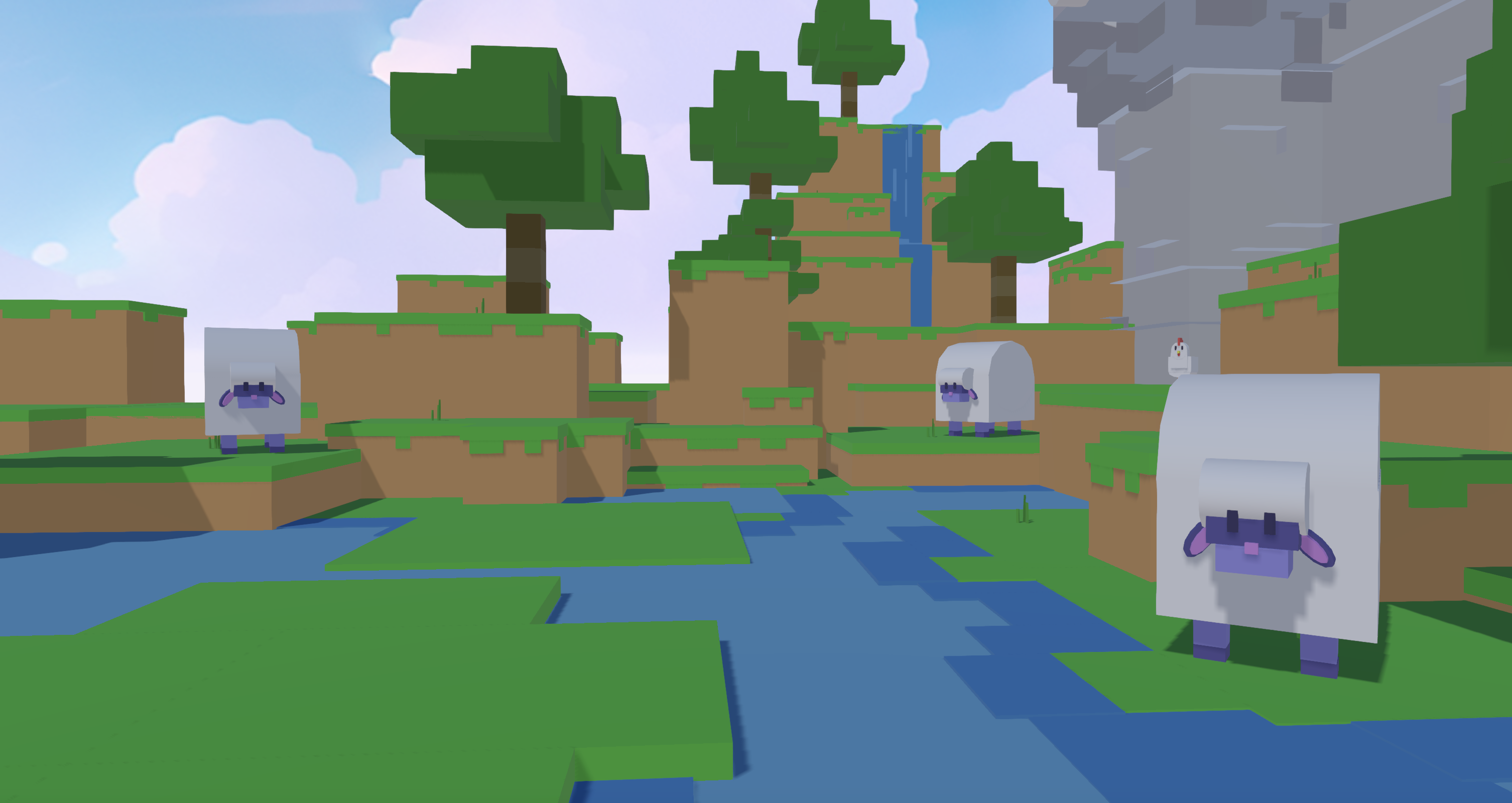
Join Nilo’s open beta and try building and playing for free so you can skip most of the Unity setup and start creating right away.
How Vibe Coding Fits with Unity’s Ecosystem
You can vibe code with Unity through AI agents and natural language tools, but the experience changes a lot depending on your setup. Unity now offers browser editors and AI coding assistants, and tools like Claude MCP let you talk to your Unity projects in natural language.
Vibe coding represents the evolution of AI-assisted development into rapid prototyping workflows, yet Unity’s current approach still expects you to understand C# basics and manage desktop software complexity.
When you compare your options, you see different tradeoffs. Unity stays focused on professional teams and does not offer a native vibe coding interface. Rosebud AI lets you generate content from prompts but does not give you a full game engine to build and play inside. Roblox Studio needs installation and scripting knowledge. Blender focuses on manual modeling and expects deep 3D skills.
Nilo stands out by combining a custom game engine with model-agnostic AI in the browser-native approach mentioned earlier. You vibe code directly inside live 3D worlds using natural language prompts. From there, you export Unity-compatible assets without touching C# or juggling complex pipelines. This setup gives you the creative freedom of vibe coding while still producing assets that match Unity’s technical expectations.

Step-by-Step Workflow: From Vibe Coding in Nilo to Unity
This workflow shows how to turn your ideas into Unity-ready prototypes using Nilo’s vibe coding tools.
Step 1: Open Nilo and Describe Your Idea
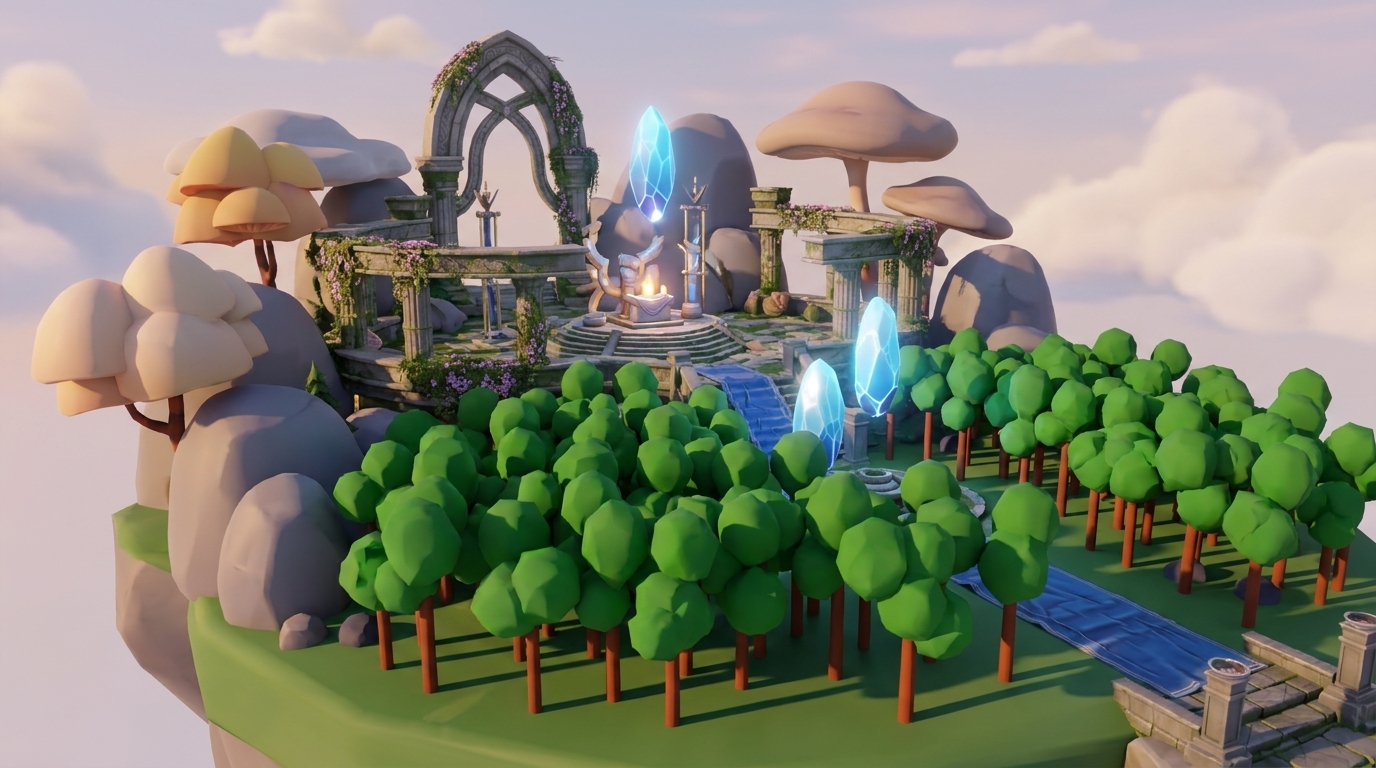
Navigate to play.nilo.io. Use the natural language editor to describe your vision, such as “create a zombie that chases the player with speed 20” or “build a floating castle with glowing crystals.” You can type, speak, or upload reference images. The AI responds by generating working code and 3D assets in real time.
Step 2: Generate and Refine Your 3D Assets
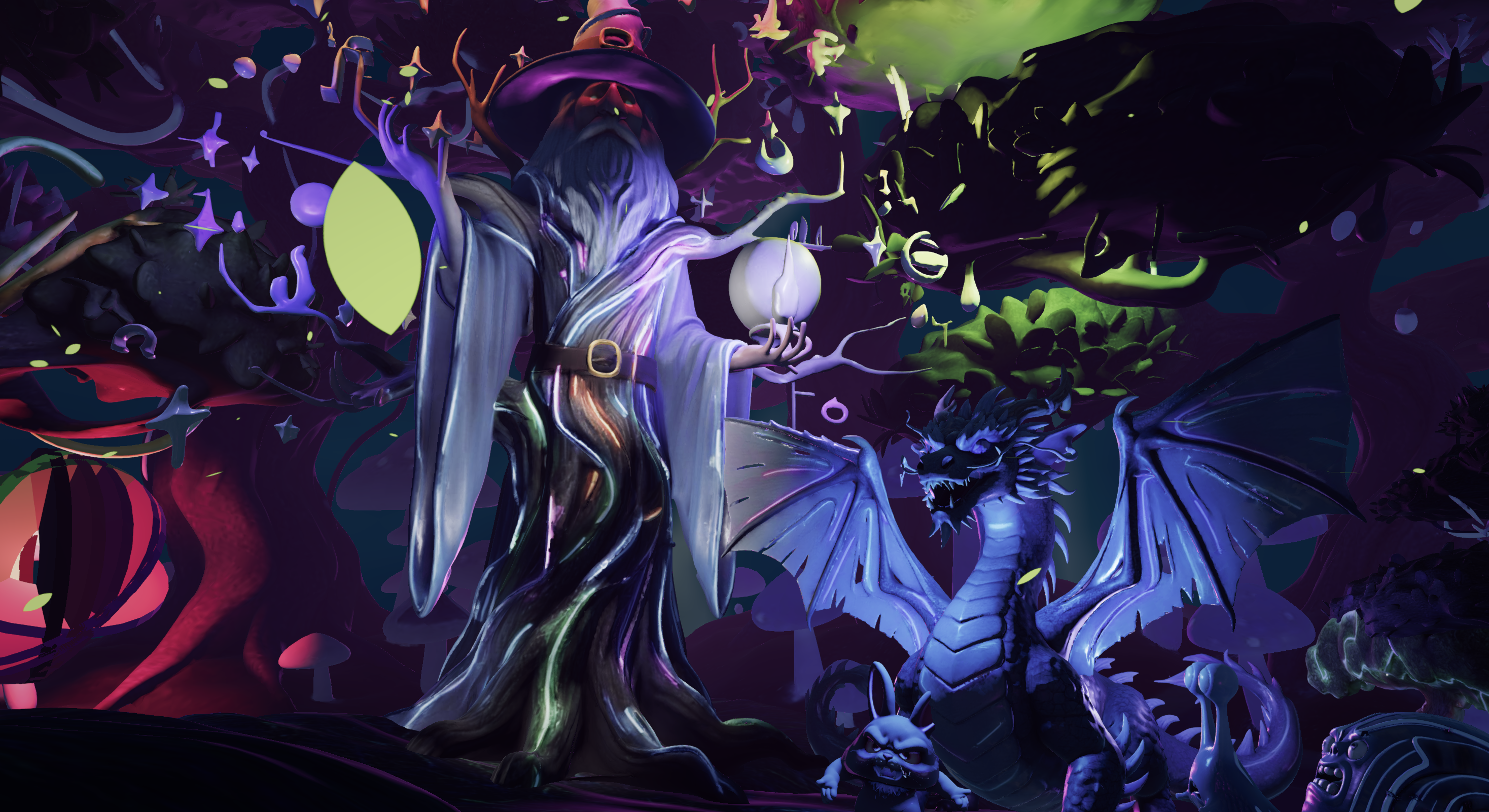
Nilo’s text-to-3D pipeline creates characters, props, and environments in seconds. You can sketch rough shapes and use the sketch-to-3D feature to turn them into interactive objects. The LOD slider then adjusts polygon counts to match Unity’s performance needs, so you avoid manual retopology and still keep your scenes efficient.
Step 3: Playtest Your World in Real Time
You can test your creations instantly inside Nilo’s multiplayer environment. Physics, collisions, and basic interactions work out of the box. When you want feedback or help, share your project link and friends can join from any device to build with you in the same space.
Step 4: Export Assets for Unity
Click Export and download FBX or glTF files optimized for Unity import. Nilo handles polycount and structure so models work directly in Unity and other engines. You avoid Blender cleanup and topology fixes. You then drag and drop the files into your Unity project.
Step 5: Import into Unity and Iterate Quickly
Drag your exported assets into Unity, and they become playable right away. If something feels off, switch back to Nilo, adjust behavior or visuals in the natural language editor, and export again. This loop usually takes minutes instead of hours, which keeps you experimenting instead of waiting.
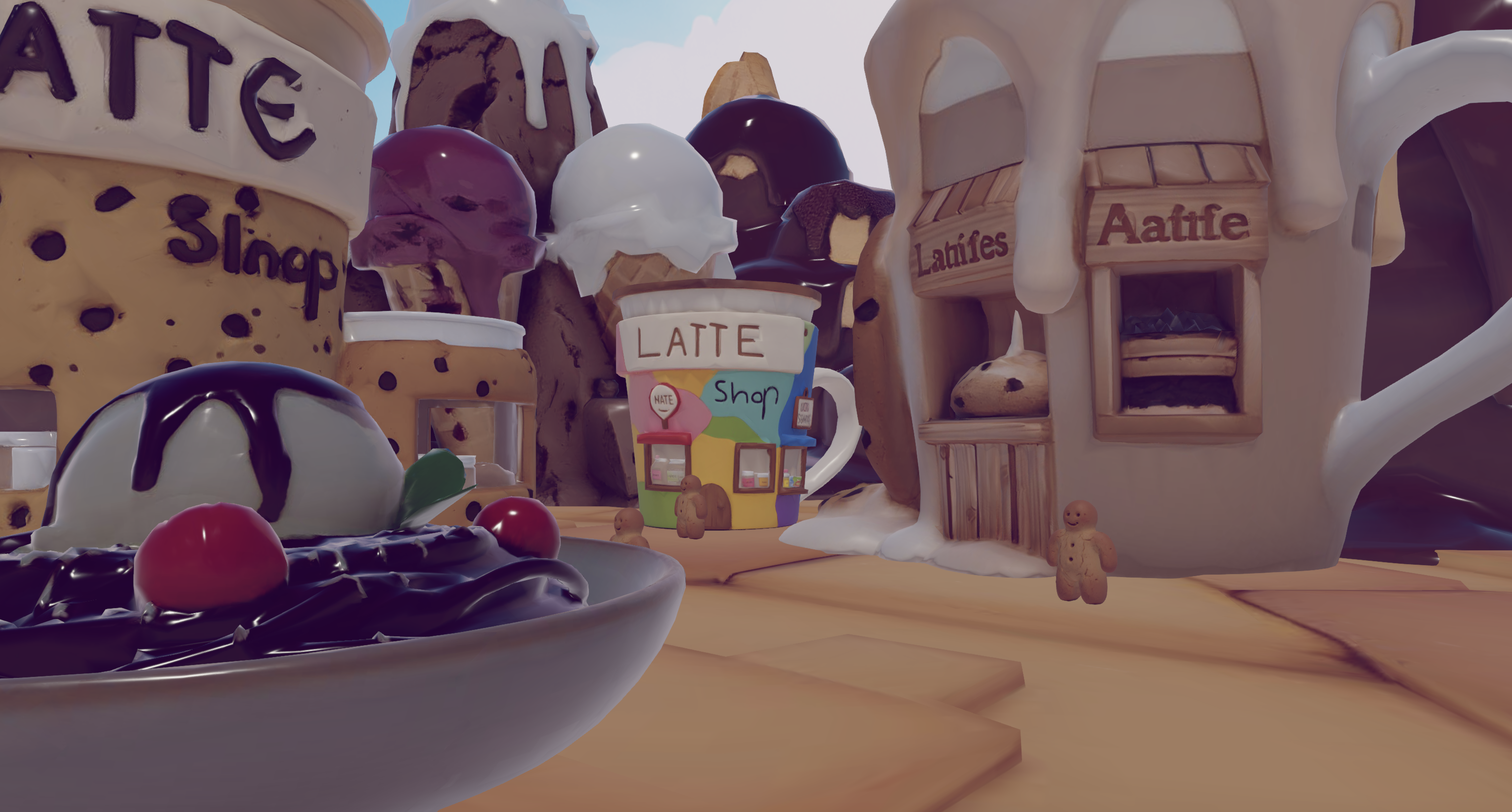
Join Nilo’s open beta and try building and playing for free to feel this fast loop for yourself.
Choosing Tools and Workflows for Vibe Coding with Unity
The vibe coding ecosystem gives you several paths to Unity compatibility, and each path affects your daily workflow. A traditional setup often splits your work across many tools. You might use one tool for AI generation, another for mesh cleanup, and Unity for final implementation. That fragmentation forces you to switch contexts, re-export files, and fix compatibility problems between apps.
Nilo brings this pipeline into a single environment so you stay focused on your game instead of your tools. Unity Studio stays desktop-focused and needs installation, while Nilo runs in your browser with WebGPU acceleration for high-end performance. You can prototype on almost any device and export Unity-ready assets as soon as you like what you see.
This browser-native approach also simplifies one of Unity’s hardest areas: multiplayer development. Unity networking usually demands deep C# knowledge and careful setup. In Nilo, you share a link and build together in real time, which lets you test multiplayer ideas long before you wire up Unity networking. WebGPU advances in 2026 make this browser workflow powerful enough to compete with many desktop tools.
Fixing Common Vibe Coding to Unity Issues
Export problems usually come from LOD settings or pivot points that do not match your expectations. Nilo’s automatic optimization handles most of this, but you should still confirm that polygon counts match Unity’s target platform. For example, mobile game models can have up to 11,000 triangles or more depending on the device, content, and number of on-screen objects, so you should plan your budgets with that in mind.
Your prompts also shape the quality of your results. Vague requests such as “make a cool weapon” give the AI too much room. Try something like “create a glowing sword with blue energy effects and 2000 polygons” instead. Nilo’s detailed controls help you avoid the “AI lottery” feeling you may have seen in other tools.
Unity import glitches often come from incompatible formats or broken meshes. Nilo’s Unity-focused exports reduce these problems by generating clean topology and correct UV mapping automatically. When you need extra help, Nilo’s Discord community of more than 9,000 builders shares workflows and troubleshooting tips. You can search for “vibe coding Unity” threads or ask your own questions.
Measuring Your Results and Leveling Up Your Workflow
Strong vibe coding workflows for Unity give you clean imports, stable frame rates, and fast iteration. Builders in the February 2026 survey mentioned earlier reported working “20 times faster than usual” on 3D models, with assets ready for Unity in minutes instead of days.
To keep that speed advantage, check your exports before you import them into Unity. Start by keeping models under about 20K polygons for mobile Unity games, since that budget shapes how smoothly your scenes run. Next, confirm that UV mapping looks correct, because even efficient meshes will look wrong if textures stretch or break. Finally, test physics interactions in both Nilo and Unity so you catch collision or rigidbody issues early. Stable 60fps across these tests usually means your scene is in a good place.
Once you feel comfortable with the basics, you can use advanced techniques to move even faster. Nilo’s collaboration tools let you split work across friends or teammates, so one person can design environments while another tunes gameplay. You can export to several platforms at once, including Unity, Unreal, VRChat, and Godot, which helps you test how your creations behave in different engines. The clone-and-remix system lets you build new prototypes from existing projects instead of starting from a blank scene every time.
FAQ
Does Nilo export directly to Unity?
Nilo exports FBX and glTF files that you can drag and drop into Unity. The platform adjusts polygon counts, UV mapping, and file structure so imports feel smooth. You do not need extra cleanup steps.
Where can I find vibe coding Unity tips from the community?
Nilo’s Discord community has over 9,000 aspiring builders and already builders like you sharing workflows and solutions. You can search for Unity-focused channels or threads, or post your own questions and get detailed replies.
Is vibe coding compatible with Unity mobile development?
Vibe coding works well with Unity mobile projects when you manage performance. Nilo’s creation tools run in the browser on many devices, and exported assets respect Unity’s mobile performance needs. The LOD system adjusts polygon counts to match iOS and Android limits while keeping visuals sharp.
Is Nilo free for vibe coding Unity workflows?
Nilo gives you 1,000 free Bits each month for AI generation, exports, and creation features. That allowance lets you explore vibe coding, try collaboration, and test Unity exports without spending a bunch of money.
What makes Nilo stand out for vibe coding Unity compatibility?
Nilo combines a custom game engine with natural language editing in one browser-based platform. AI coding tools can give Unity developers 40–60% productivity gains on C# scripting tasks, but Nilo removes scripting from your workflow while still delivering Unity-ready assets. You build inside live 3D worlds instead of prompting a separate tool and waiting for files.
Join Nilo’s open beta and try building and playing for free so your creative ideas can turn into interactive worlds without heavy technical barriers.
