
Key Takeaways for Vibe Coding Roblox Exports
- Vibe coding lets you generate Roblox assets and scripts with natural language, so you skip traditional Lua and 3D modeling hurdles.
- Automatic LOD and retopology fix common export failures caused by high polycounts and messy topology.
- Nilo’s 7-step workflow creates one-click FBX/glTF exports tuned for Roblox Studio, removing typical 3D software barriers.
- Real-time previews, multiplayer playtesting, and a browser-based editor help you iterate much faster.
- Start vibe coding and exporting free with Nilo’s open beta and ship Roblox games faster.
How Vibe Coding Changes Roblox Building for You
Vibe coding means you generate code and assets through natural language, using text, voice, or images with real-time 3D feedback. You skip learning Lua scripting or complex modeling software and simply describe what you want. Say things like “create a speed boost that makes players run 3x faster” or “build a medieval castle tower with weathered stone texture.”
Traditional Roblox development slows you down at several points. SEELE.ai reports that conventional workflows take 40+ hours for prototypes. Roblox’s 20k triangle caps and scripting barriers then block your creative momentum. When you chain tools from Meshy to Blender to Studio, your flow breaks and you end up in an “AI lottery” where results feel random.
Nilo’s vibe coding editor lets you generate content, tweak variables like changing “speed = 2” to “speed = 20”, and see the result instantly in your 3D world. As one builder from Nilo’s February 2026 Survey said, “You made me enjoy vibe-coding. The code assistance works almost flawlessly, other experiences have just been frustrating at best.” In that same survey, 82% of builders rated their experience as “Awesome” or “Good.”
Start vibe coding your first Roblox game free at Nilo and feel the difference yourself.
Why Roblox Exports Break & What You Need Before You Start
Roblox exports often fail because AI-generated assets can have messy topology, too many polygons, and format issues. Developers on Roblox forums frequently discuss export and SSH sync problems. These problems usually show up in complex workflows that depend on external plugins and WebSocket setups.
Before you start, you need three basics that keep your workflow smooth. You need a Roblox account so you can import your final assets into Studio. You need any modern browser because Nilo runs in the browser and does not require installs. You also need a free Nilo signup, which gives you 1000 Bits each month for AI generation and exports.
You will also see two key terms during this process. FBX and glTF are standard 3D file formats that Roblox Studio accepts. LOD, or Level of Detail, automatically reduces polygon counts so your game runs smoothly without lag.
Get your 1000 free Bits and start exporting Roblox-ready assets today.
7 Steps to Export Vibe Code from Nilo to Roblox Studio
This 7-step workflow helps you move from idea to Roblox-ready export without complex tools.
1. Sign up free at play.nilo.io
Create your account and unlock 1000 free Bits each month. You use these Bits for AI generation, testing, and exports.
2. Vibe code your obby or script
Use text, voice, or images to generate assets and logic. Say “create a jumping puzzle with moving platforms” or upload a sketch of your character design. Nilo turns your prompts into playable content you can adjust.
3. Adjust detail with the LOD slider
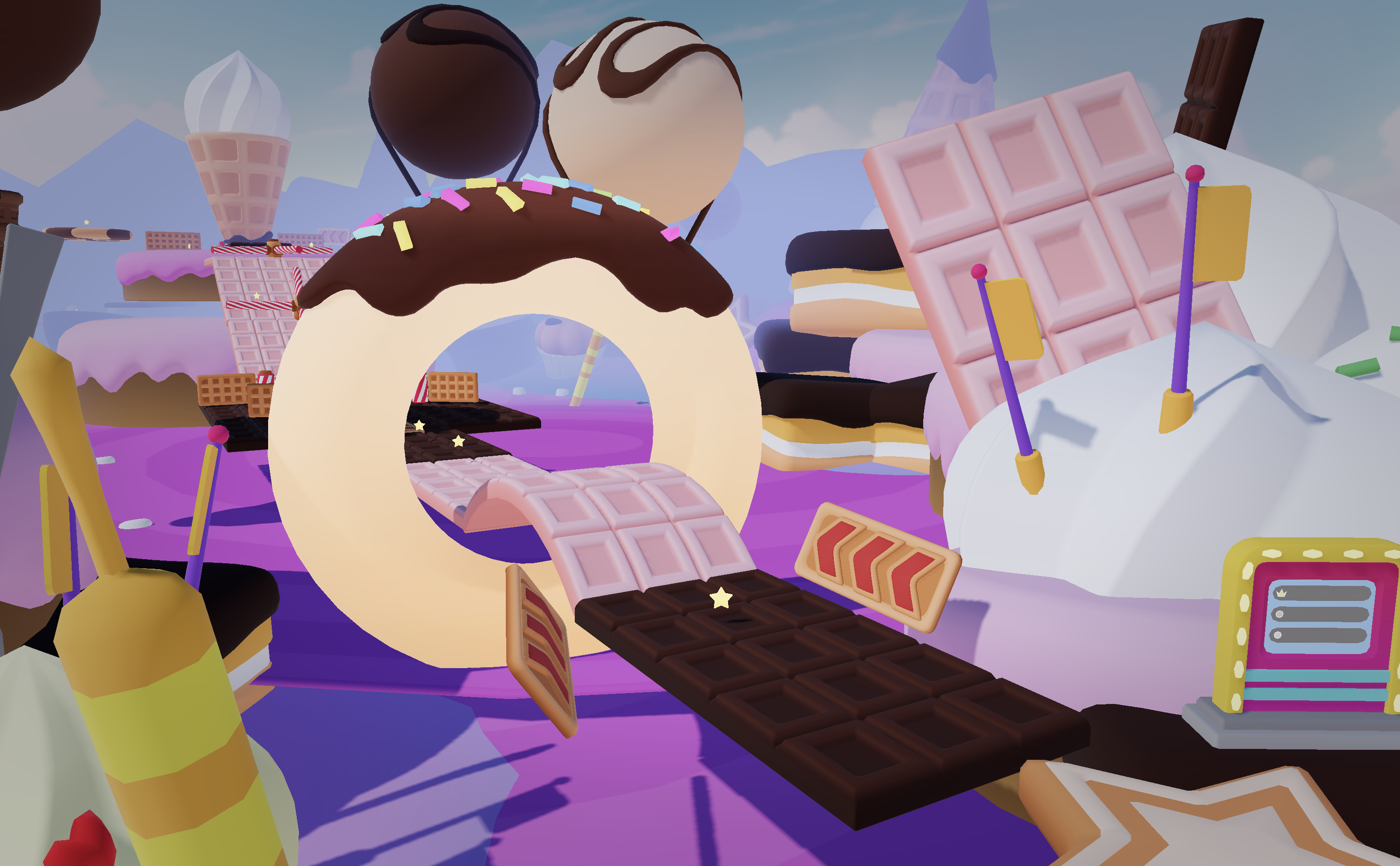
Set the polygon count between 10k and 20k so your asset fits Roblox’s performance limits. The real-time preview shows exactly how your model will look once you bring it into Studio.
4. Rig and animate with one click
Add automatic rigging for characters, then layer animations through simple text prompts like “walking animation for humanoid character.” You avoid manual bone setup and animation curves.
5. Playtest with a multiplayer link
Share your world URL so friends can jump in and test with you before you export. This early playtest catches bugs, balance issues, and visual glitches while you still edit quickly in Nilo.
6. Export once in FBX or glTF, Roblox-ready
Download your optimized asset in a Roblox-compatible format. The export already has clean topology and performance-friendly settings, so you skip manual cleanup.

7. Drag and drop into Roblox Studio
Open Asset Manager in Roblox Studio and import your file. Your model appears ready to use. You avoid retopology, UV mapping fixes, and most script debugging for the exported content.
This process takes minutes instead of hours. Nilo handles optimization, rigging, and format compatibility that usually demand deep 3D and scripting experience.
Try this 7-step flow yourself and export your first Roblox asset in minutes.
How to Import, Test, and Fix Your Asset in Roblox Studio
Once you have your export, you move into Roblox Studio to bring it to life in your game. In Roblox Studio, open Asset Manager and drag your exported file directly into your workspace. Roblox Studio supports glTF and FBX imports, so the file type from Nilo fits right in.
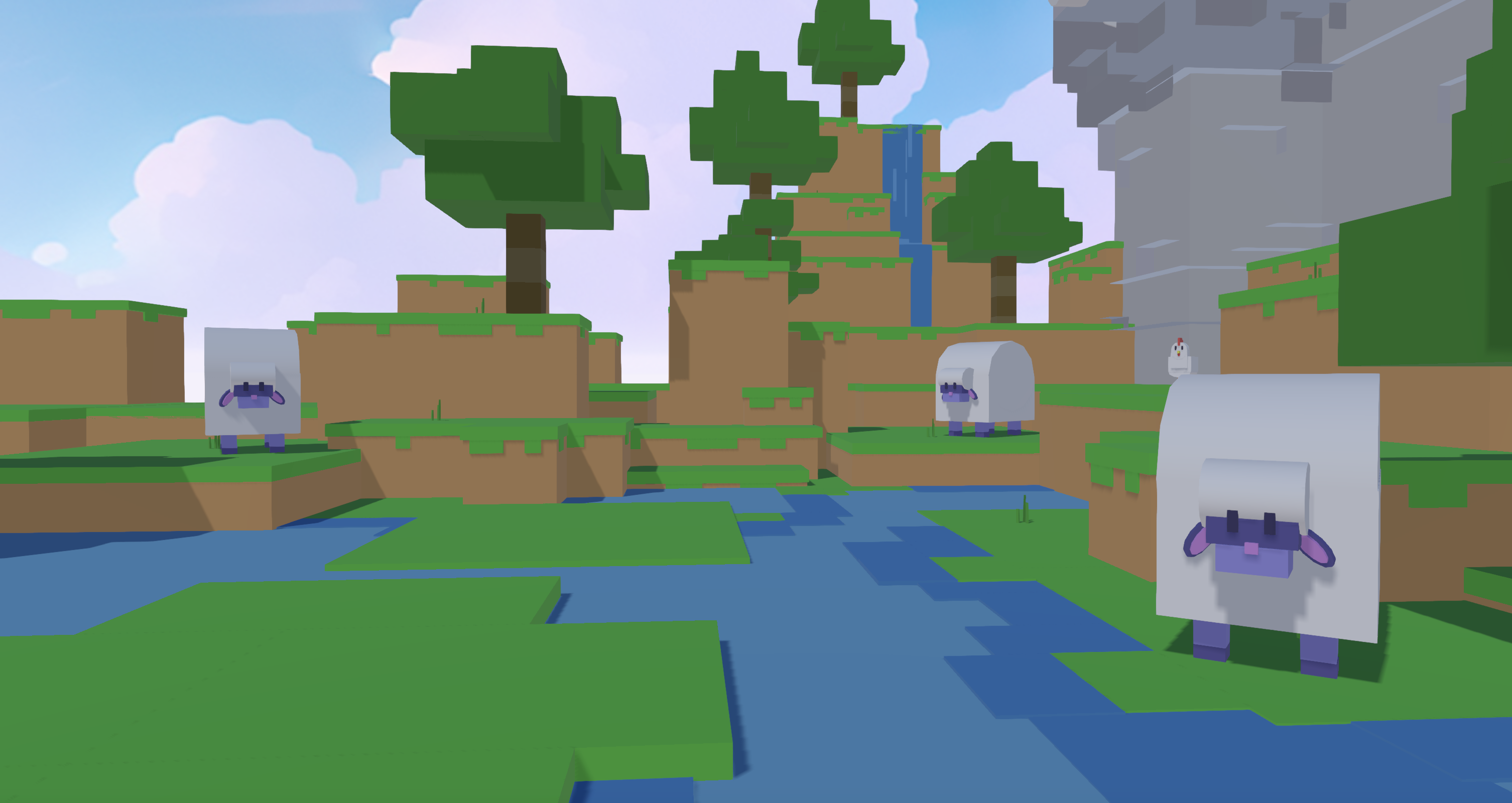
Next, test your imported asset by running the game and watching how it behaves. Look for lag, stuttering, or slow loading, which often signal polygon count problems. If you see performance issues, go back to Nilo and lower the LOD slider to reduce complexity.
Script issues need a different approach. If abilities do not trigger or interactions feel broken, edit the logic directly in Nilo’s vibe coding editor. You see changes in real time there, which is usually faster than debugging scripts only inside Studio.
Most common problems have simple fixes. High poly count calls for Nilo’s LOD system. Animation glitches often clear up when you re-export with different rig settings. Traditional workflows might force you into SSH setups or complex plugin configurations, but Nilo exports work directly without extra software layers.
Import a test asset into Studio today and fine-tune it with Nilo’s vibe coding tools.
Advanced Roblox Workflows & How Nilo Compares
Once you feel comfortable with basic exports, you can push into more advanced workflows. You can use Rojo sync for large codebases when you want tighter version control. You can also create asset packs that keep your game’s theme consistent across maps, characters, and props.
Nilo connects with collaborative building on Discord and Telegram, so friends can join your project quickly. You share a link, they jump in, and you build together without long setup steps.
Different tools cover different parts of the process, so you should pick based on what you want to do. Roblox Studio gives you full control but expects you to handle scripting and asset work yourself. Rosebud AI focuses on prompt-based creation and keeps things lighter on engine tools. Sloyd helps you generate assets but stops there. Nilo stands out by covering your full pipeline from first idea to published game, while still letting you stay hands-on with building.
Nilo’s strengths include Roblox-tuned exports, AI that can switch between different model providers for better results, and a 9k+ Discord community where you can ask questions and share work. Builders often report big speed gains. As one builder said, “You can work 20 times faster than you usually work on models.” Survey results mentioned earlier reflect this same jump in satisfaction.
FAQ
Is vibe code Roblox export free?
Yes. Nilo Starter gives you 1000 Bits each month for free vibe coding and exports. This usually covers most casual building needs without you spending money.
What file formats are compatible?
Nilo exports FBX and glTF formats tuned for Roblox Studio, Unity, Unreal Engine, and other major game engines. You can reuse the same asset across several platforms.
Do I need coding knowledge?
You do not need scripting knowledge to start. Vibe coding handles game logic through natural language prompts, and the visual editor lets you adjust variables directly.
Does Nilo work on mobile?
Yes. Nilo runs fully in the browser on both desktop and mobile devices. You avoid installs and do not need high-end hardware.
How do I export to Roblox Studio?
Create your asset or script in Nilo, click Export, download the file, and then import it through Roblox Studio’s Asset Manager. The whole export and import flow takes seconds because Nilo handles optimization for you.
Conclusion: Bring Your Vibe Coded Worlds into Roblox Faster
You can master vibe code Roblox exports with Nilo’s streamlined workflow and keep your creative flow moving without technical roadblocks. The entire process happens in your browser, from idea to Roblox-ready file, without juggling extra tools.
Start vibe coding and exporting free today at Nilo and see how quickly you can ship your next Roblox experience.
