
Key Takeaways
- Vibe games focus on cozy, aesthetic worlds like floating islands and hangout spaces, so exports must stay under Roblox’s 20,000 triangle limit.
- Roblox Studio uses RBXM for models, RBXL for places, OBJ for simple geometry, and FBX for animations and Reimport-friendly workflows.
- You can follow a clear 7-step process: prepare assets, export RBXM, extract scripts, save animations, convert formats, optimize performance, and use Nilo for a smoother browser workflow.
- Common problems like high polycount, import errors, and messy topology become easier to fix with tools such as Nilo’s automatic LOD controls and one-click rigging.
- Skip export headaches entirely by using Nilo’s browser-based workflow to build and play vibe games for free.
Vibe Games, Exports, and Why They Matter for You
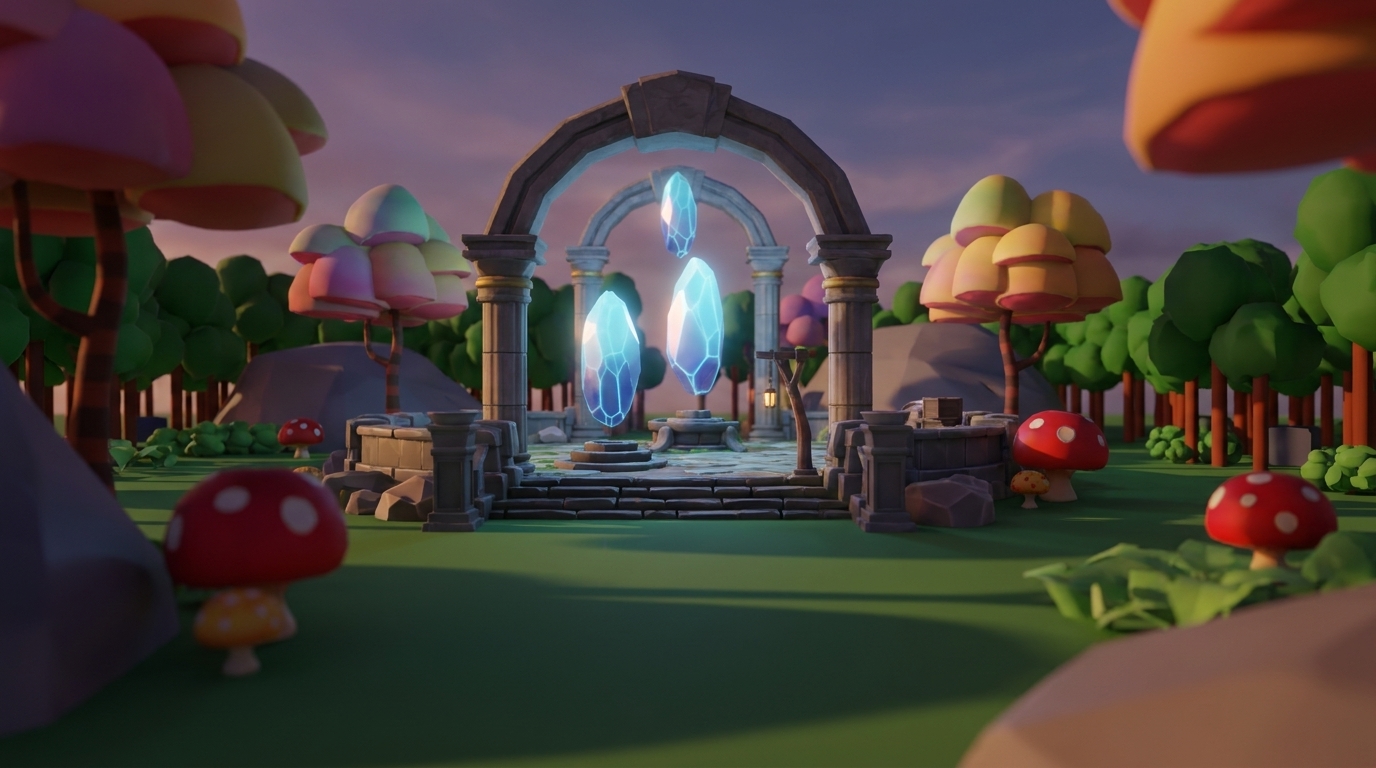
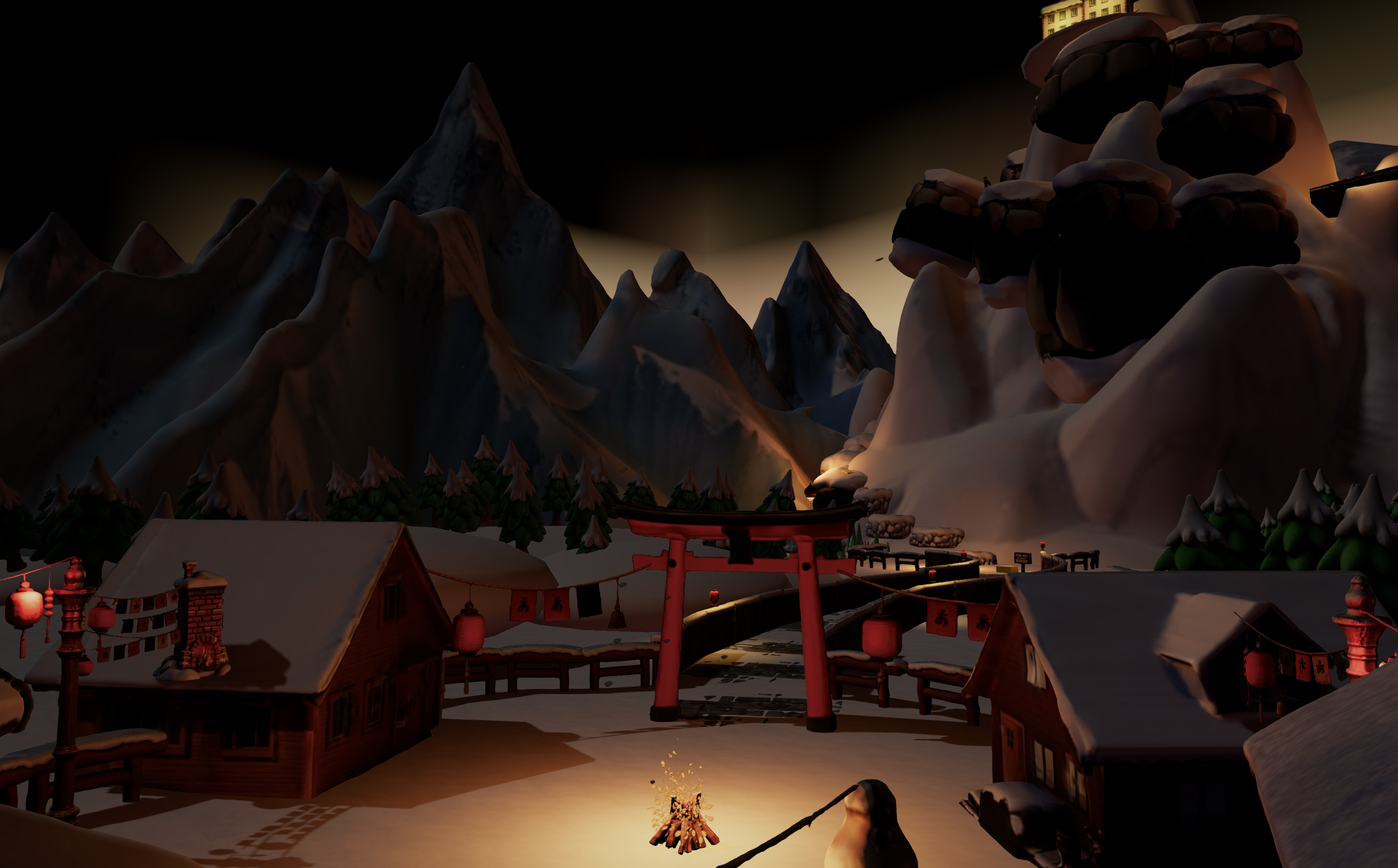
Vibe games are chill, aesthetic experiences that put atmosphere first and gameplay second. Picture cozy rooms, floating islands, retro city streets, and hangout spaces where you and your friends just explore and relax. These games care more about how the world feels and looks than about complex mechanics.
Exporting your vibe game gives you backups, lets you share assets with collaborators, and prepares your work for the Roblox Marketplace or other platforms. You usually work with .rbxl files for full places, .rbxm files for individual models, and standard 3D formats like FBX and OBJ when you want to move assets into other tools.
Roblox enforces strict performance limits: 20,000 triangles per model and 1024×1024 texture caps. These limits matter a lot for vibe games, because your scenes often include many detailed props and decorations. Nilo helps by generating Roblox-ready assets with automatic polycount control, so you avoid hours of manual cleanup.
Prerequisites and Export Basics for Your Builds
You get smoother exports when you understand Roblox Studio’s basic building blocks. Studio uses Parts, which are simple shapes, and Unions, which are combined shapes, as the core pieces of your worlds. You will also see terms like polycount, which is the triangle count that affects performance, LOD, which controls automatic mesh simplification, and 3D formats such as FBX and OBJ.
Understanding these terms helps you compare different export workflows and pick what fits your project. Traditional setups rely on desktop software and constant tool-switching between Roblox Studio, Blender, and plugins. Browser-based platforms like Nilo remove installations and keep everything inside one connected workflow. Try Nilo’s streamlined workflow to feel how different that process can be.
Step-by-Step Guide: Exporting Roblox Vibe Games in 7 Steps
Step 1: Prepare Your Assets in Studio
Start by selecting the models, terrain, or buildings you want to export. Check each model’s polycount in the Properties panel so you stay within Roblox limits. Group related objects into Models to keep your exports organized and easier to manage.
Step 2: Export Native RBXM Files
Use File > Export Selection to save your chosen models as .rbxm files. This method preserves Roblox-specific properties and hierarchies, which makes it a solid choice when you share assets with other Roblox creators.
Step 3: Extract Scripts with External Tools
For Lua scripts, use tools like Rbx-export or Rojo to pull code out of Studio. These tools convert your Studio scripts into external .lua files, so you can use version control and collaborate with others outside Roblox Studio.
Step 4: Export Animations from Studio
Open the Animation Editor and save your animations as .rbxm files. This approach keeps your keyframe data safe and lets you reuse the same animations in other Roblox projects without rebuilding them.
Step 5: Convert Assets to Standard 3D Formats
When you want cross-platform compatibility, export selected objects as OBJ files from the right-click context menu. FBX format works better with Roblox Studio’s Reimport feature, which lets you push one-click updates to imported 3D content.
Step 6: Improve Performance Before Export
Reduce Union complexity and anchor static objects to keep your game running smoothly. These changes work together with careful polycount control, so keeping part counts under 10,000 and polygon counts within limits helps your vibe game stay smooth even with lots of detail.
Step 7: Use Nilo for a Smoother Browser Workflow
Create vibe game assets directly in your browser with Nilo’s Craft Your Model feature. The platform automatically manages polycount with an LOD slider, rigs characters with one click, and exports Roblox-ready FBX files. You can test assets in real time before exporting, so you know they match your quality bar.
| Format | Best Use Case | Compatibility | Pros | Cons |
|---|---|---|---|---|
| RBXM | Roblox-only sharing | Roblox Studio only | Preserves properties, scripts, and hierarchies | Locked to Roblox, no external use |
| FBX | Cross-platform assets | Most 3D software | Supports Reimport and animation data | Larger file sizes |
| OBJ | Simple geometry | Universal 3D support | Small files and wide compatibility | No animation or material data |
Nilo’s Browser Workflow for Vibe Game Exports
Nilo helps you create vibe games by combining AI text-to-3D generation, automatic LOD control, one-click rigging, and Roblox-ready exports in one browser tab. Traditional workflows often force you to jump between Roblox Studio, Blender, and several plugins. Nilo keeps that whole pipeline, from idea to export, in a single place.
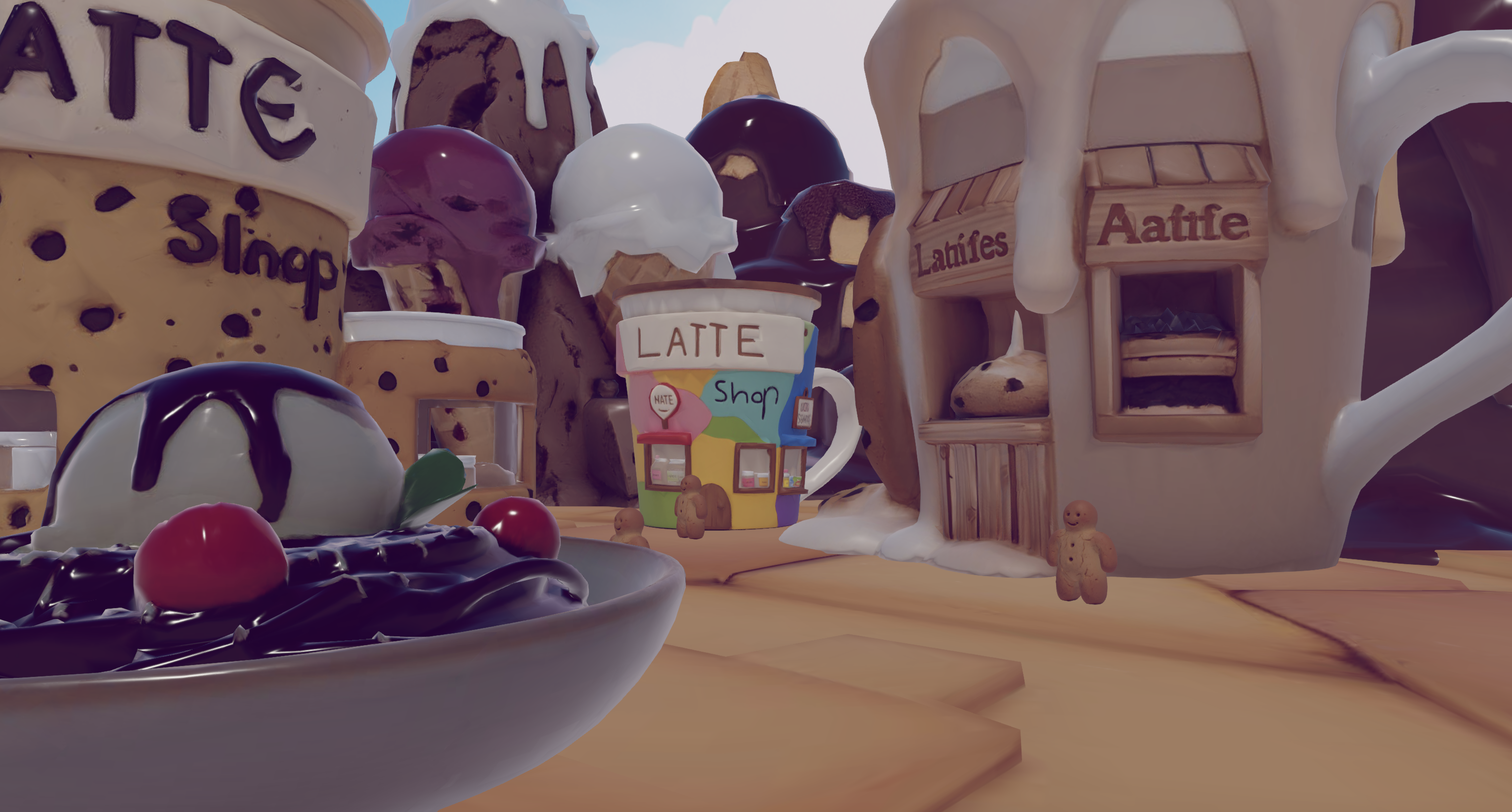
The platform focuses on complete workflows instead of isolated asset drops, which you might see in tools like Sloyd or Lemonade.gg. The automatic polycount optimization covered in Step 7 helps your models work in Roblox Studio without extra cleanup.
The freemium model gives you 1,000 Nilo Bits every month for asset generation, so aspiring builders or already builders like you can experiment without spending a bunch of money. Start creating assets 20x faster with Nilo’s freemium model compared to traditional multi-tool workflows.
Common Challenges and How You Can Fix Them
Polycount Issues: The 20,000 triangle limit mentioned earlier often breaks complex vibe game assets. If you use Nilo, the LOD slider automatically reduces polygon counts while keeping your models looking good. For traditional Studio exports, manually simplify Unions or use mesh decimation tools to reach similar results.
Import Errors: Failed imports usually come from corrupted geometry or unsupported features. Nilo’s one-click rigging removes many rig-related import problems. With a traditional workflow, focus on clean topology and simple rigs before exporting.
Script Extraction: Use Rbx-export for reliable Lua script extraction, or use Nilo’s natural language code editor to rebuild your game logic by describing what you want instead of writing every line of code.
Format Compatibility: FBX usually gives better cross-platform support than OBJ for complex assets. As noted in the export steps, FBX’s Reimport compatibility becomes especially helpful while troubleshooting, because it lets you push updates without losing Studio tweaks.
Topology Problems: Many AI-generated assets need manual retopology in Blender. Nilo’s real-time retopology removes that step and gives you clean meshes that are ready to drop into your game.
How to Tell If Your Export Worked
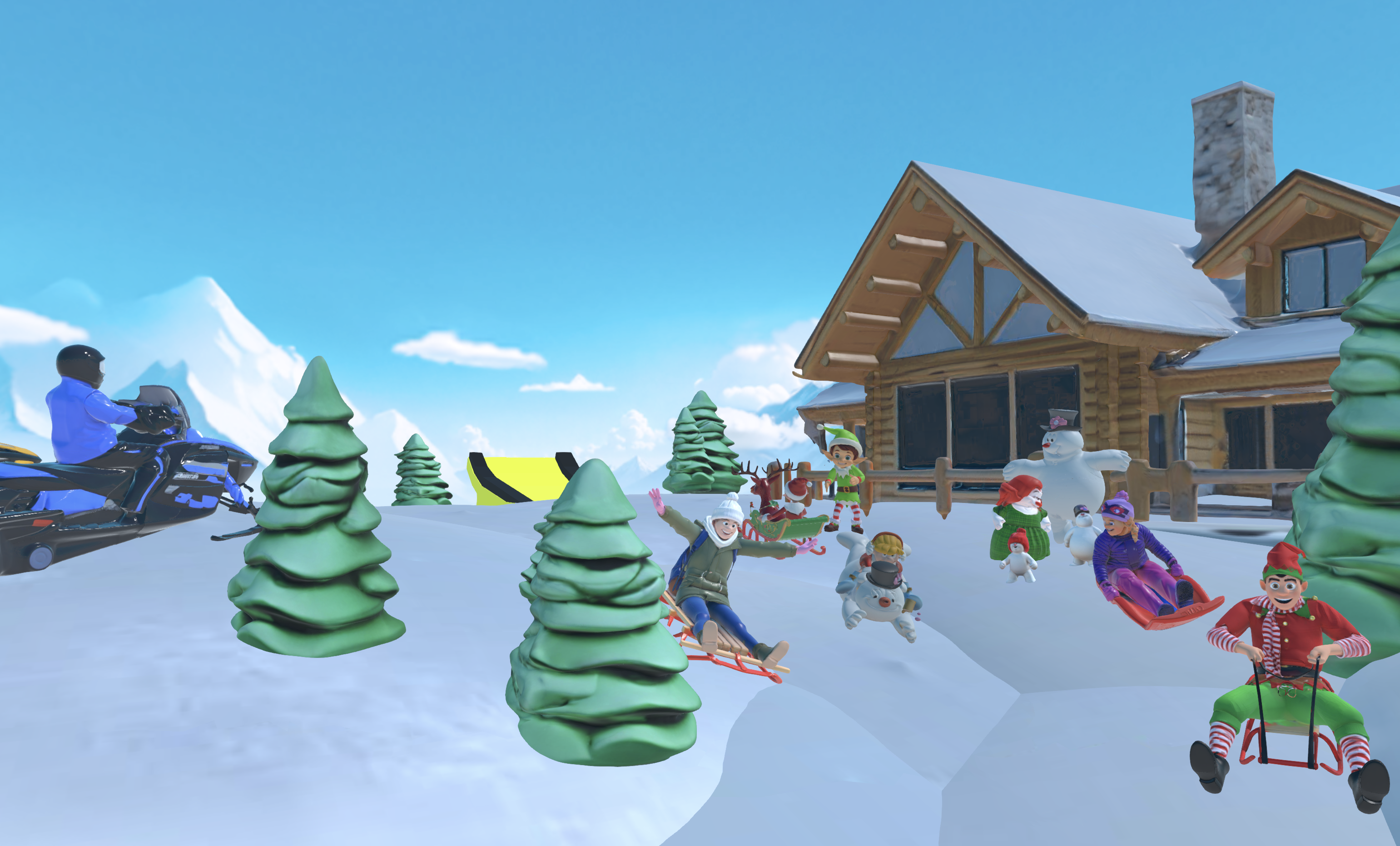
Successful vibe game exports stay under 20,000 triangles per model, import cleanly into your target platform, and finish in under five minutes. You should see 60+ FPS in-game and keep your visual quality after optimization.
Use this quick checklist: assets import without errors, polycount stays within limits, textures show correctly, and animations play as expected.
Advanced Tips for Iteration and Collaboration
You can speed up future projects by creating asset packs that share the same visual style across multiple vibe games. Plan for multi-platform releases by exporting to several formats at once instead of handling each platform separately. Collaboration becomes easier when you use real-time building tools that let multiple creators work in the same space.
Explore Nilo’s collaborative building and cross-platform export features to streamline your entire vibe game workflow from first block to final publish.
FAQ
How do you export a game in Roblox?
Roblox Studio does not support direct full-game exports to external platforms. You can save places as .rbxl files and export individual models as .rbxm files with File > Export Selection. For cross-platform use, export selected objects as OBJ files or rely on third-party tools to convert assets to FBX. Complete game exports usually need tools like Rojo or platforms like Nilo that handle more of the pipeline for you.
Is OBJ or FBX better for Roblox exports?
FBX usually works better for Roblox exports because it supports Roblox Studio’s Reimport feature, keeps animation data, and preserves material information. OBJ files are simpler and work almost everywhere, but they do not carry animation or material data. For static vibe game assets, OBJ is fine. For animated characters or complex models, FBX gives you a smoother workflow.
What is the maximum polycount for Roblox models?
Roblox uses a 20,000 triangle limit per model to protect performance. Vibe games often push close to that limit with detailed props and scenery, so smart optimization really matters. Use LOD systems or mesh decimation to cut polycount while keeping your style. Nilo handles this optimization automatically, so your exports stay inside Roblox’s performance rules.
Can you export Roblox animations to other platforms?
You can export Roblox animations as .rbxm files for use inside Roblox. For other platforms, you need conversion tools or a platform like Nilo that supports cross-platform animation export. The Animation Editor saves keyframe data, but turning that into standard formats like FBX needs extra processing to stay compatible with other 3D tools.
Why do exported models look different in other software?
Models often look different because each platform uses its own material system, lighting setup, and texture mapping rules. Roblox’s materials do not always match what you see in other 3D software. Export textures separately and reapply them in the target tool, or use platforms like Nilo that prepare assets for multiple platforms at the same time.
Conclusion
Exporting Roblox vibe games can feel smooth instead of stressful when you follow a clear process. You can stick with native Studio methods for Roblox-only sharing or use browser-based workflows when you want easier cross-platform support. The main goal is choosing tools that remove friction instead of adding more steps.
Nilo stands out by combining AI generation, automatic optimization, and export tools in a single browser platform. You avoid installations, polycount headaches, and Blender cleanup. Master vibe game exports without technical barriers using Nilo’s integrated platform.
